Contact us
 Customer Area
 Visit LWS
Rate this article :
3.4/5 | 24 opinion
This article was useful to you ?
 Yes
Yes
 No
No
 Article read
147483 once
Article read
147483 once Merci ! N'hésitez pas à
poser des questions sur nos documentations si vous souhaitez plus d'informations et nous aider à les
améliorer.
Merci ! N'hésitez pas à
poser des questions sur nos documentations si vous souhaitez plus d'informations et nous aider à les
améliorer.Vous avez noté 0 étoile(s)



Sommaire
Procédure
This guide explains how to set up your LWS e-mail address in the Mail application on your iPhone or iPad so that you can send and receive e-mail directly from your device.
There are two possible methods:
This documentation is intended for users with an LWS email address associated with :
The configuration procedure on iPhone and iPad remains the same regardless of the panel used.
Before configuring your email address on iPhone or iPad, make sure you have the following information:
In most cases at LWS, the settings are :
| Parameter | Value |
|---|---|
| Identifier | your full e-mail address |
| Password | address password |
| Incoming server (IMAP) | mail.yourdomain.ext |
| Outgoing server (SMTP) | mail.yourdomain.ext |
| IMAP port | 993 |
| POP port | 995 |
| SMTP port | 465 |
| Security | SSL/TLS |
[bcolor_orange]
Replace yourdomain.ext with your real domain name.
Example:
if your e-mail is contact@monsite.fr
The server will be mail.monsite.fr
[bcolor]
When configuring your account, your iPhone or iPad may ask you to choose between IMAP and POP. Here are our tips for making this choice.
This method works with all LWS packages.
It involves adding your email address in the Mail application by entering your mail server settings.
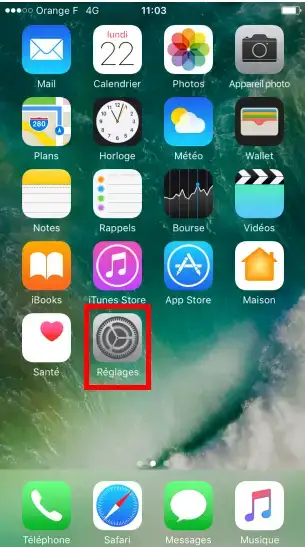
1. Open the Settings application on your device.
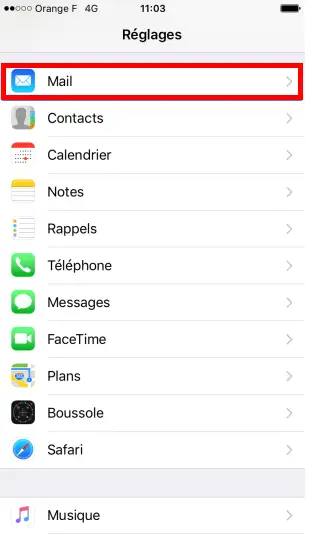
2. Scroll down the list and then tap Mail or"Passwords and accounts".
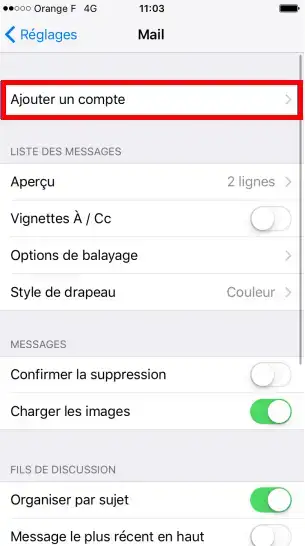
3. Then tap on Accounts or Add an account.
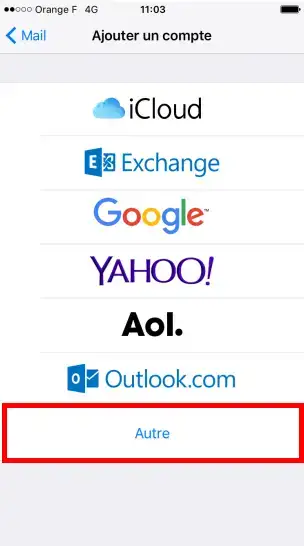
1. From the list, select Other.
2. Then press Add a Mail account.
Fill in the required fields:
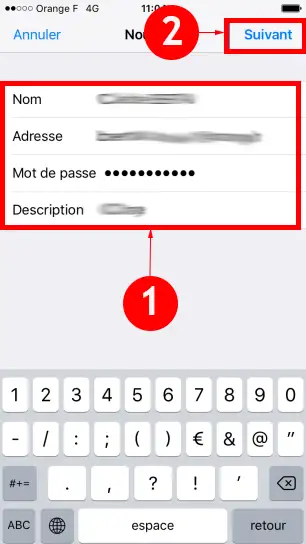
Then press Next.
Two protocols are generally available: IMAP or POP.
We recommend using IMAP.
👉 The IMAP protocol keeps your emails synchronised between all your devices (webmail, smartphone, computer). Your messages remain stored on the server and can be accessed from anywhere.
1. Select IMAP at the top of the screen.
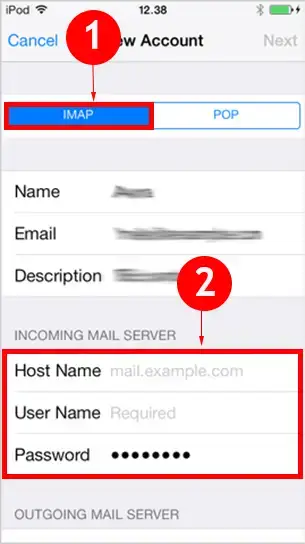
2. In the Receiving server section, enter :
mail.domaine.fr)This information enables your device to receive emails.
3. Now press"Save".
1. In the Outgoing server section, enter :
mail.domaine.fr)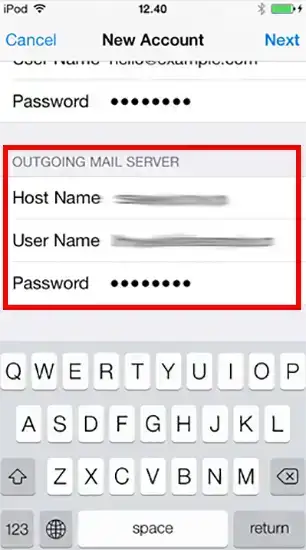
2. Now press"Save".
👉 The SMTP server is used to send emails.
Even if your device indicates that authentication is optional, you must enter your email address and password to be able to send messages.
[bcolor]
1. Your iPhone / iPad will automatically check the account settings.
2. Once the verification is complete, press Save.
Your email address is now configured.
This method automatically sets up your email settings.
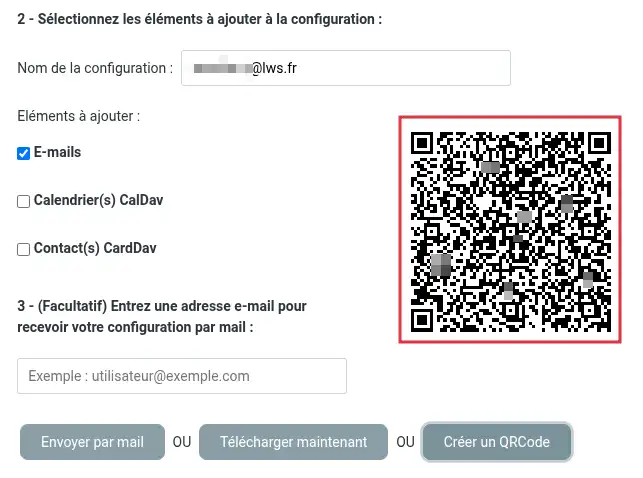
Log in to your Roundcube Webmail. Click on Settings. Click on Configuration on "Config. Devices" (1) Check that the device selection (2) is set to"Apple (iPhone, iPad, MacOS)". Tick at least the"E-mails" item (3) to be added to the configuration. Click on the"Create a QRCode" button. A configuration QR Code will appear on the screen.
.Step 1: Generate the QR Code from Webmail

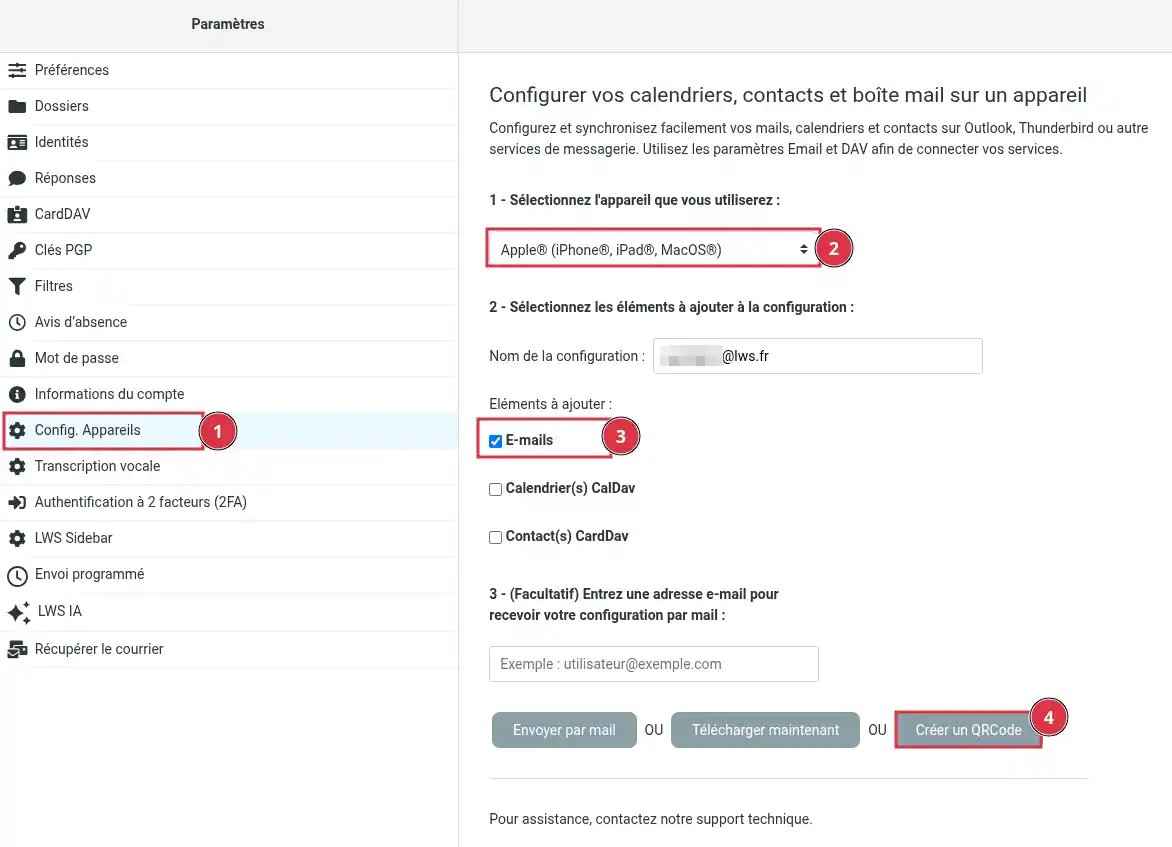
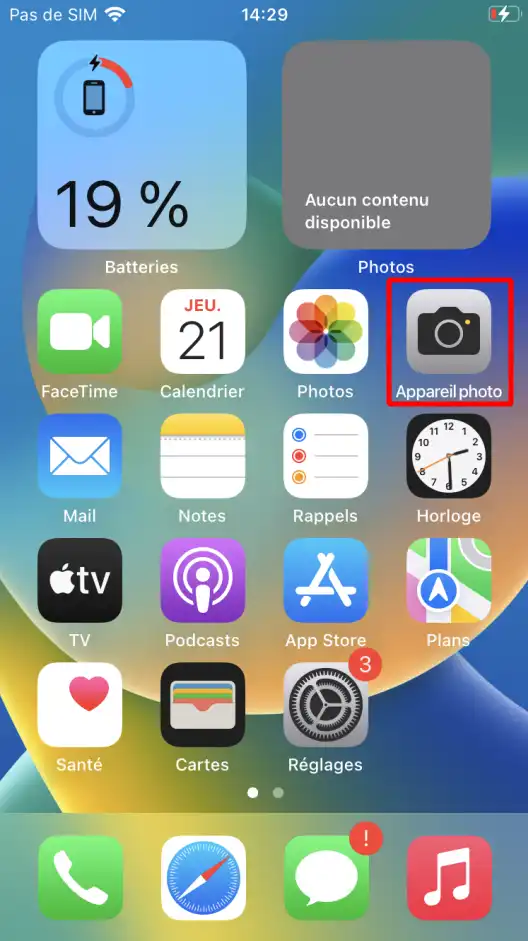
Open the Camera application on your iPhone or iPad.
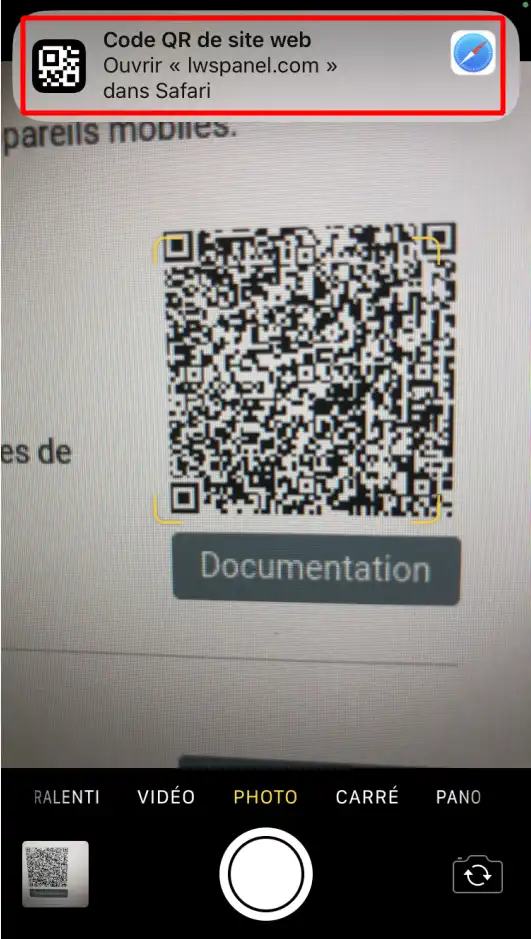
Scan the QR Code displayed on the screen.
A notification will appear: tap on it to download the configuration profile.
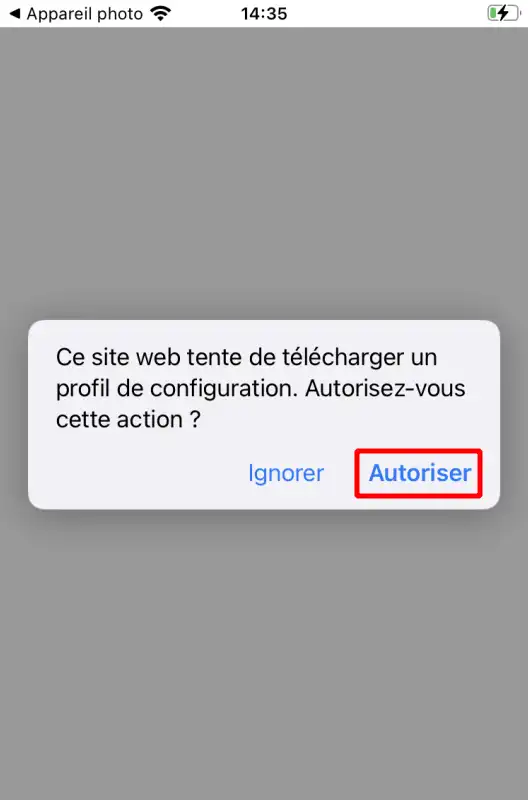
Then authorise the configuration profile to be downloaded.
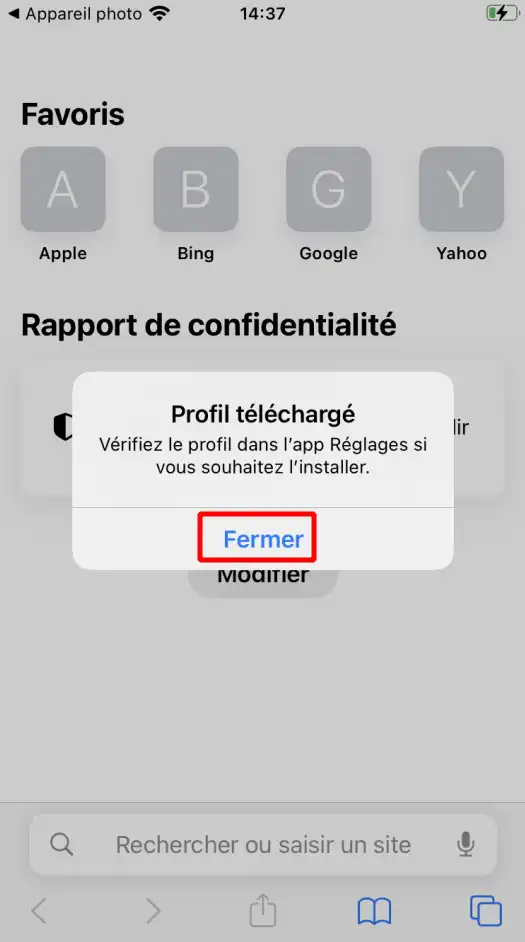
Then close the download confirmation window.
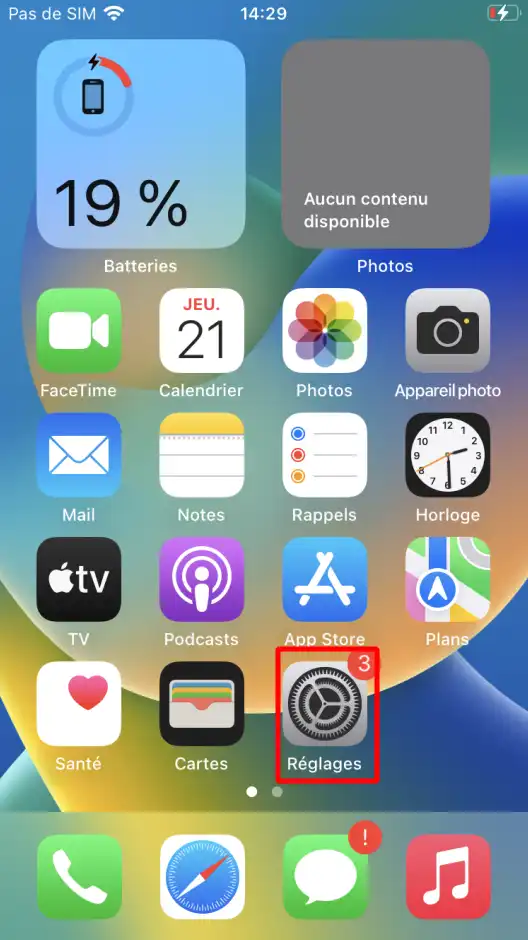
Open the Settings application.
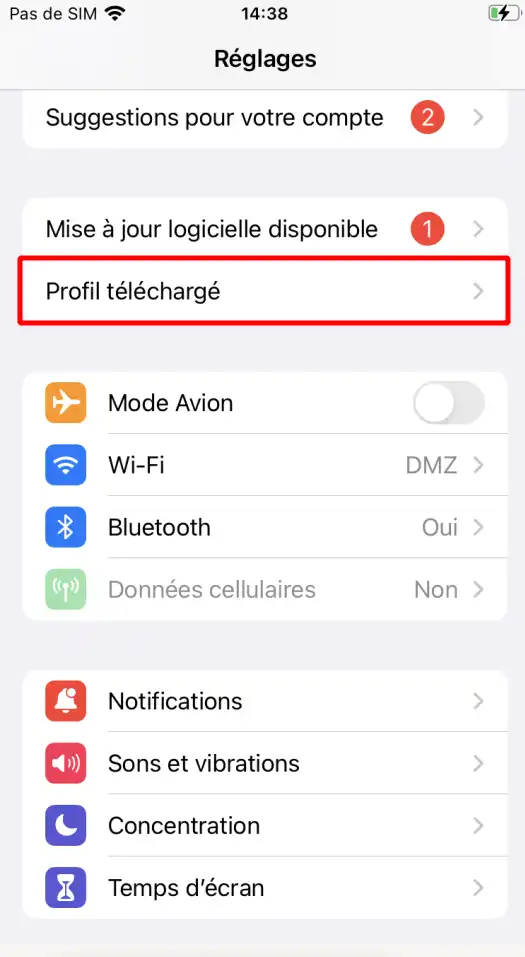
Touch Downloaded profile.
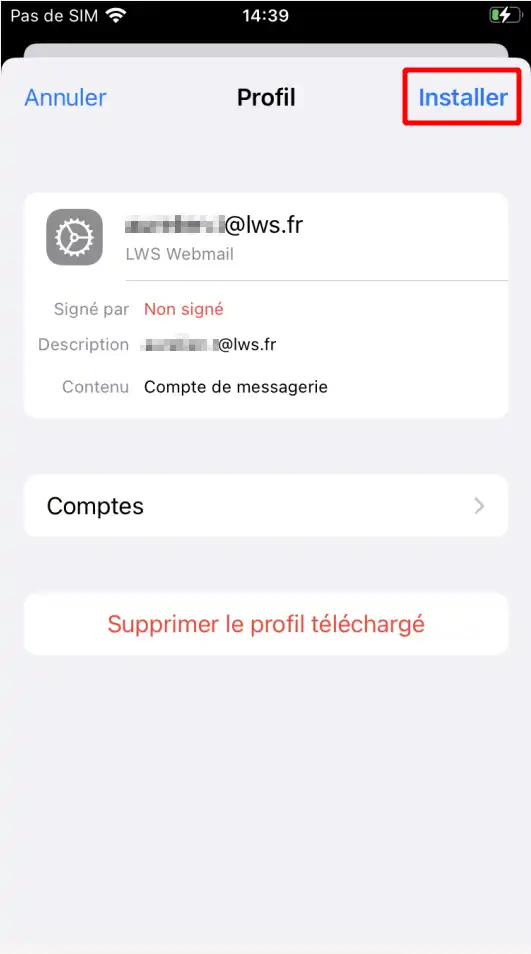
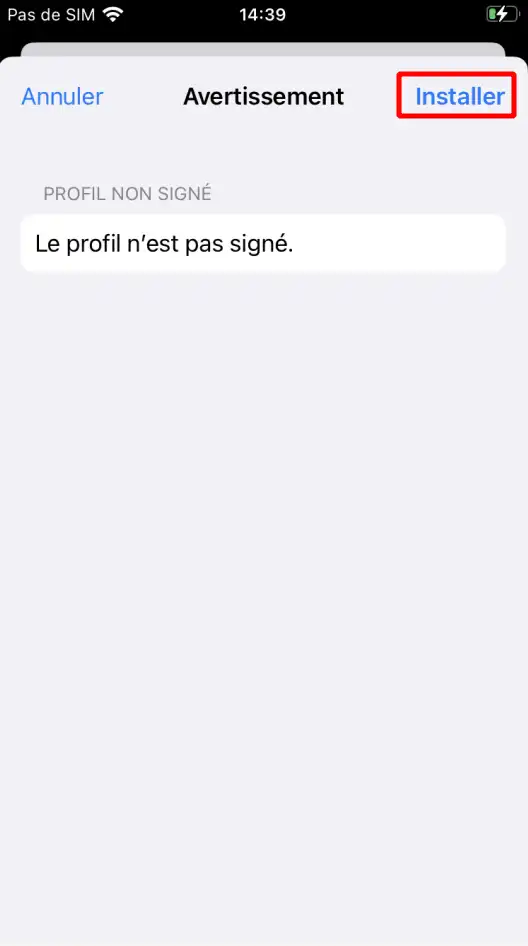
Press Install in the top right-hand corner.
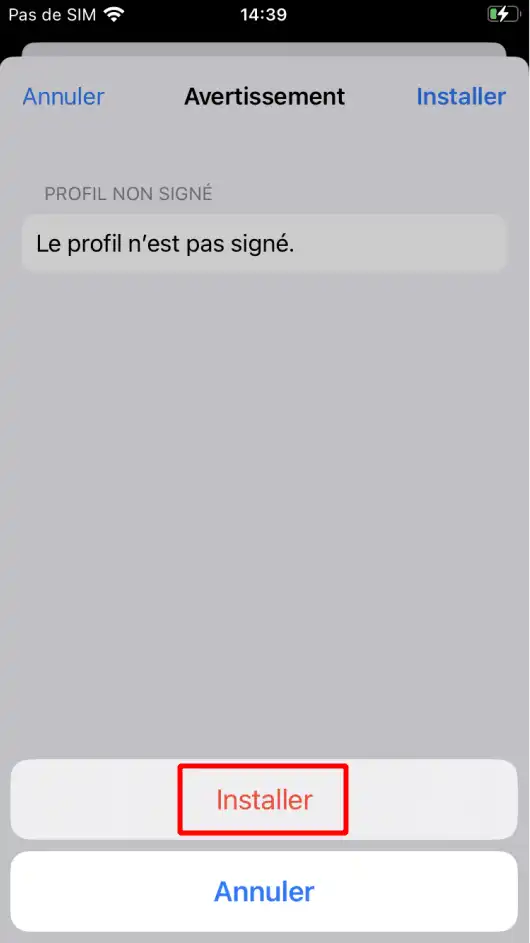
A warning will appear, as the profile is not signed by Apple. Don't worry, this is normal as it was generated automatically from your webmail, click"Install".
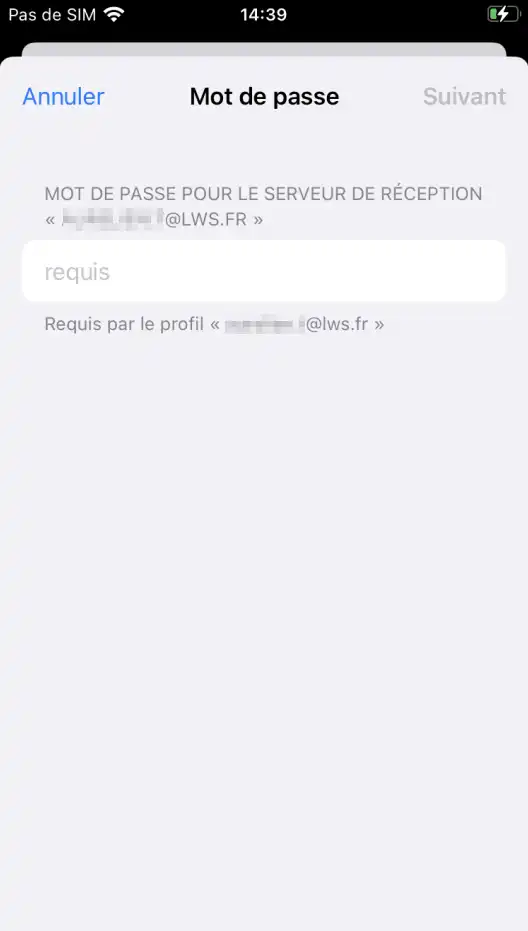
If your device is configured with a lock code, it may ask you to enter it. Once you have done this, click"Install".
Enter the password for the e-mail address to complete the operation.
Click "OK" to finish.
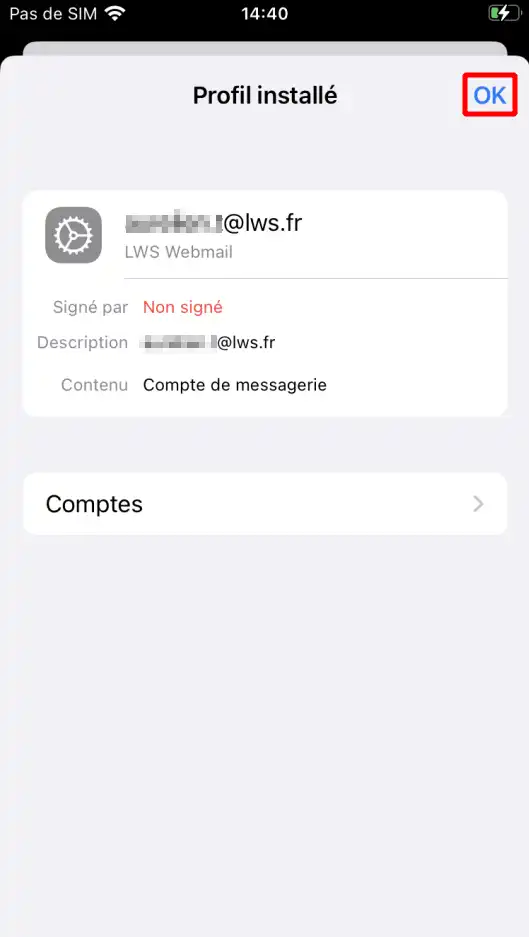
Once the installation is complete, your email address is automatically configured.
Once the configuration is complete:
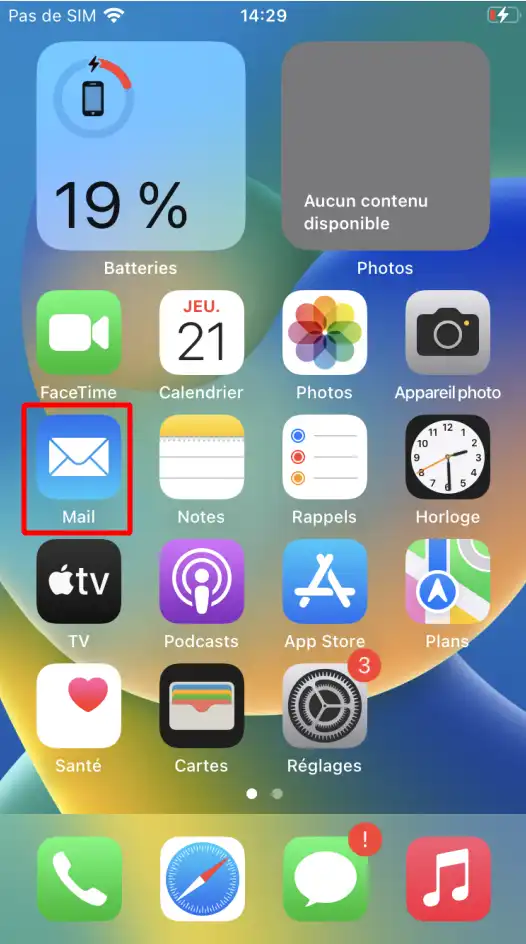
Expected result
If these conditions are met, your configuration is correct.
If you want to delete the automatic configuration :
Open Settings.
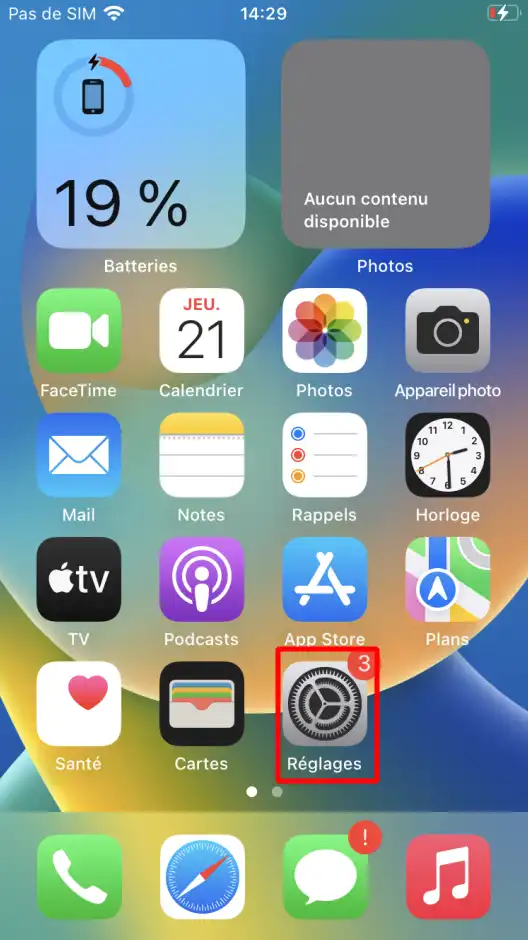
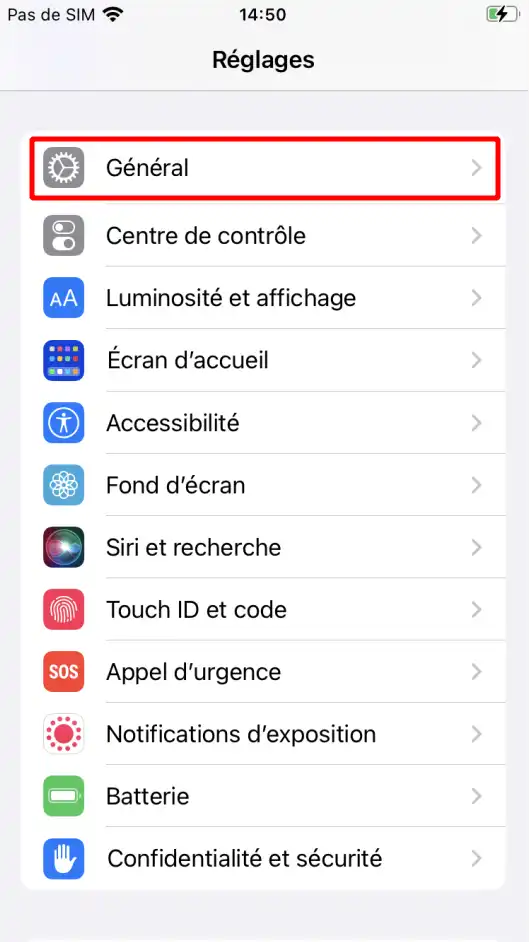
Go to General.
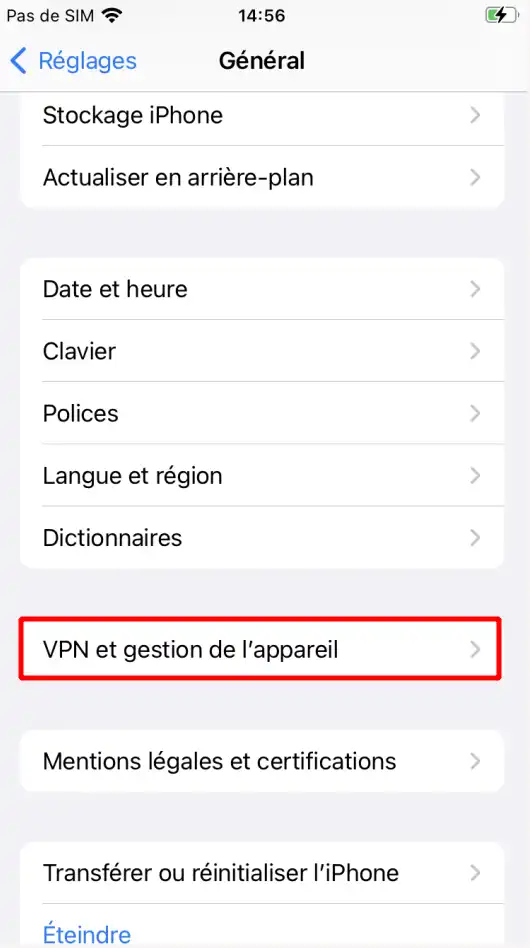
Press VPN and device management.
Select the messaging profile
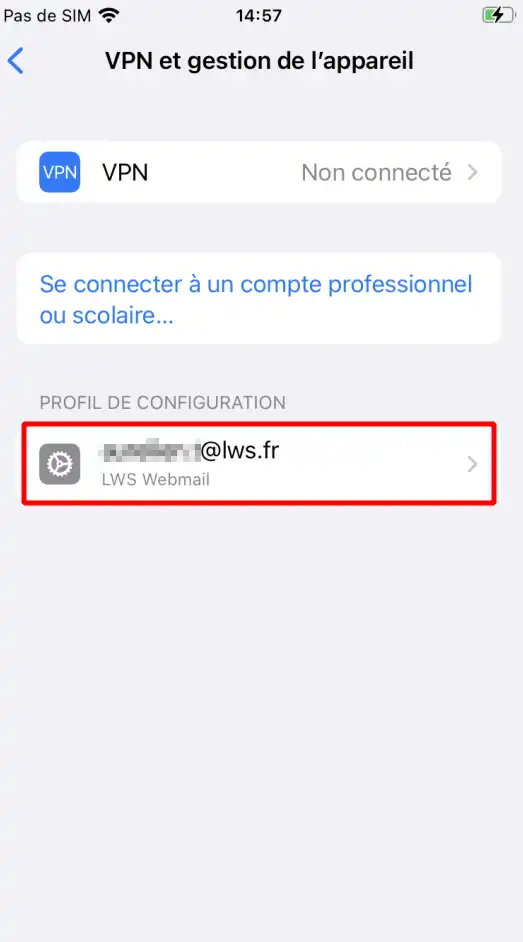
Press Delete profile
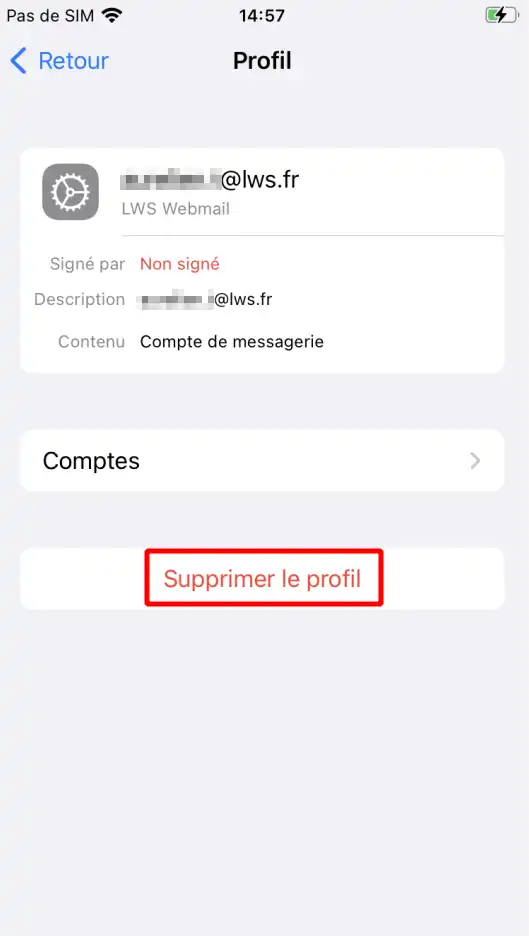
The email configuration will then be removed from your device.
If the iPhone or iPad indicates that the password is incorrect :
This is usually due to the SMTP server.
Check that :
Check the IMAP server information:
If you are using QR Code configuration:
You now know how to configure an LWS email address on an iPhone or iPad.
There are two methods available:
Once your account has been set up, you can send and receive emails directly from the Mail application on your device.
Rate this article :
3.4/5 | 24 opinion
This article was useful to you ?
Yes
No
0mn reading
0mn reading
Setting up an LWS e-mail address on an Android tablet or phone
1mn reading
How do I configure an email address in Mail on macOS?
0mn reading
How do I add my email address to Gmail online webmail?
 About LWS :
LWS is a 100% French web hosting company that focuses on quality and innovation and offers a responsive and competent technical service at affordable prices.
About LWS :
LWS is a 100% French web hosting company that focuses on quality and innovation and offers a responsive and competent technical service at affordable prices.