Contact us
 Customer Area
 Visit LWS
Rate this article :
4.2/5 | 10 opinion
This article was useful to you ?
 Yes
Yes
 No
No
 Article read
82281 once
Article read
82281 once Merci ! N'hésitez pas à
poser des questions sur nos documentations si vous souhaitez plus d'informations et nous aider à les
améliorer.
Merci ! N'hésitez pas à
poser des questions sur nos documentations si vous souhaitez plus d'informations et nous aider à les
améliorer.Vous avez noté 0 étoile(s)



Sommaire
Procédure
This documentation explains how to set up an email address hosted by LWS on an Android phone or tablet using the Gmail application so that you can send and receive messages from your mobile device.
The procedure below takes you step-by-step through the process of adding your email address to the email application on your phone or tablet. It is aimed at beginners and requires no special technical knowledge.
This documentation is aimed at users with an LWS email address associated with :
The configuration procedure on Android remains the same regardless of the panel used.
Before configuring your email address on Android, make sure you have the following information:
In most cases at LWS, the settings are :
| Parameter | Value |
|---|---|
| Identifier | your full e-mail address |
| Password | address password |
| Incoming server (IMAP) | mail.yourdomain.ext |
| Outgoing server (SMTP) | mail.yourdomain.ext |
| IMAP port | 993 |
| POP port | 995 |
| SMTP port | 465 |
| Security | SSL/TLS |
Replace yourdomain.ext with your real domain name.
Example:
if your e-mail is contact@monsite.fr
The server will be mail.monsite.fr
[bcolor]
When configuring your account, Android may ask you to choose between IMAP and POP. Read our advice on making this choice.
On your Android phone :
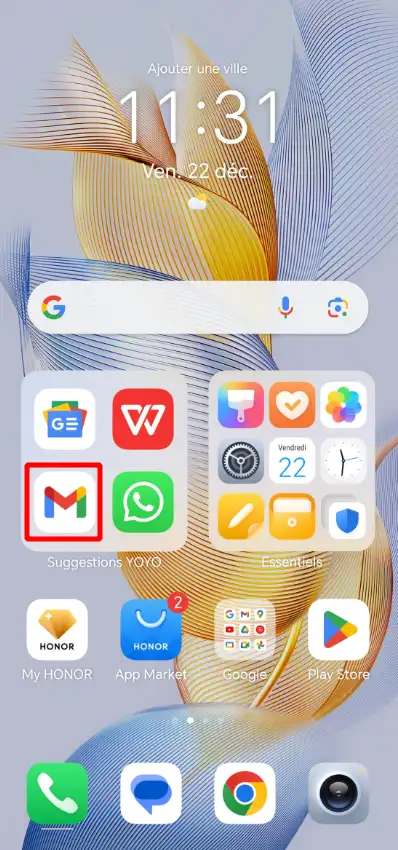
1. Open the Mail or Email application on your phone.
⚠️ Depending on the brand of your device (Samsung, Xiaomi, Google Pixel, etc.), the name and interface may vary slightly.
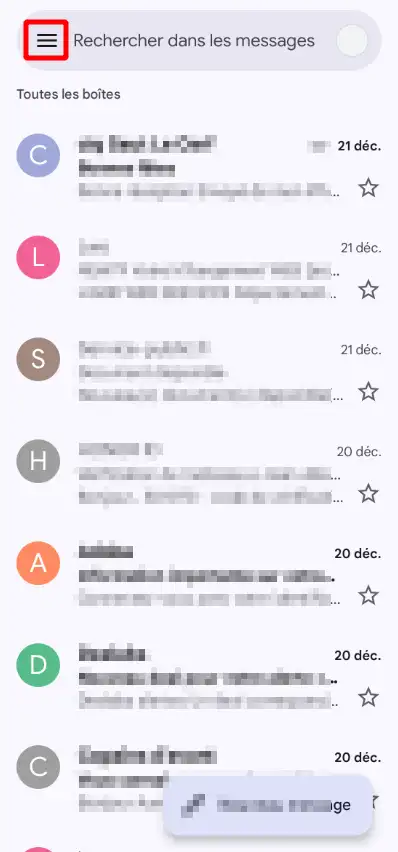
2. Open the application menu.
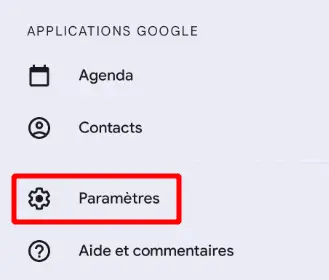
3. Press Settings.
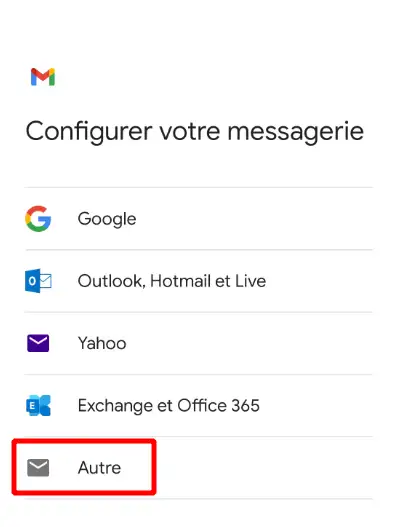
1. Touch Add an account.
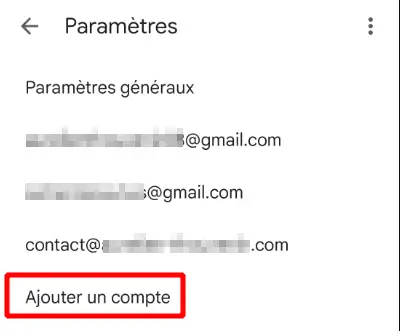
2. Several account types may appear. Select: Other or Manual configuration
1. Enter your full e-mail address.
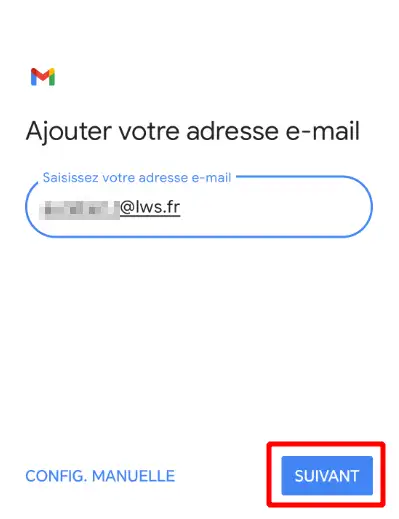
2. Press Next.
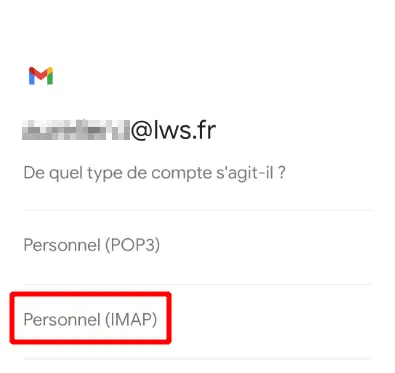
Android will now ask you to choose your account type.
Select: IMAP (this is the recommended mode).
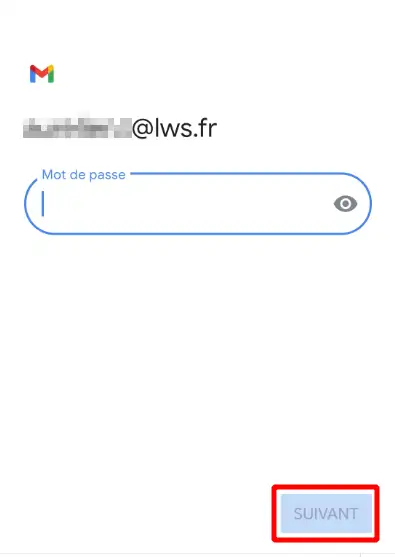
Enter the password for your email address.
Then press Next.
Fill in the following information.
| Field | Value |
|---|---|
| User name | Your full e-mail address |
| your password | address password |
| IMAP server | mail.yourdomain.ext |
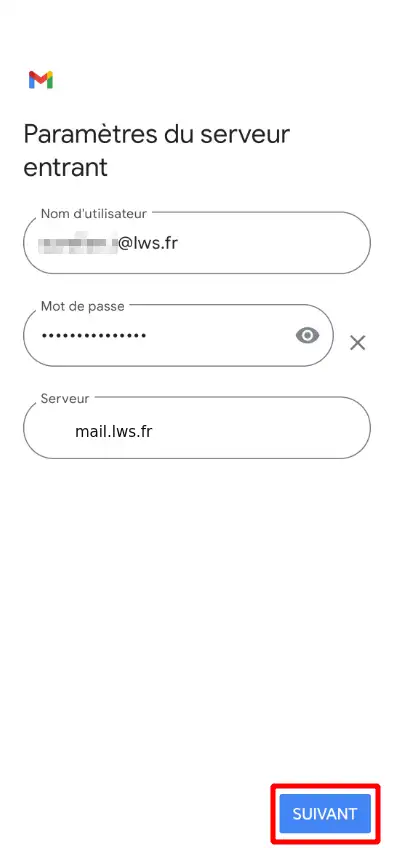
Then press Next.
Fill in the following information:
| Field | Value |
|---|---|
| SMTP server | mail.yourdomain.ext |
| Port | 465 |
Authentication information is the same :
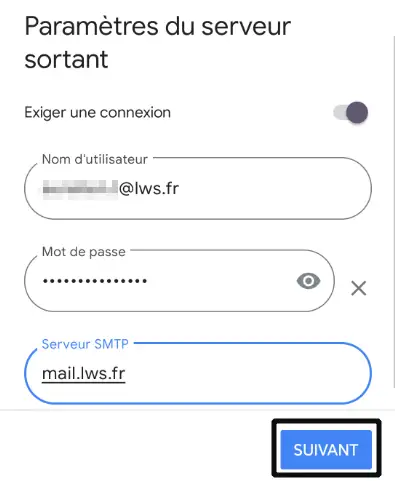
Then press Next.
You will be offered various settings. Keep the default settings and click"Next".
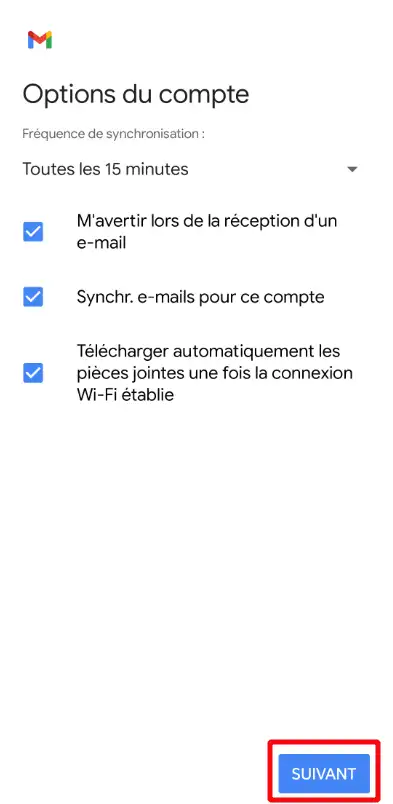
Your phone will now check the settings.
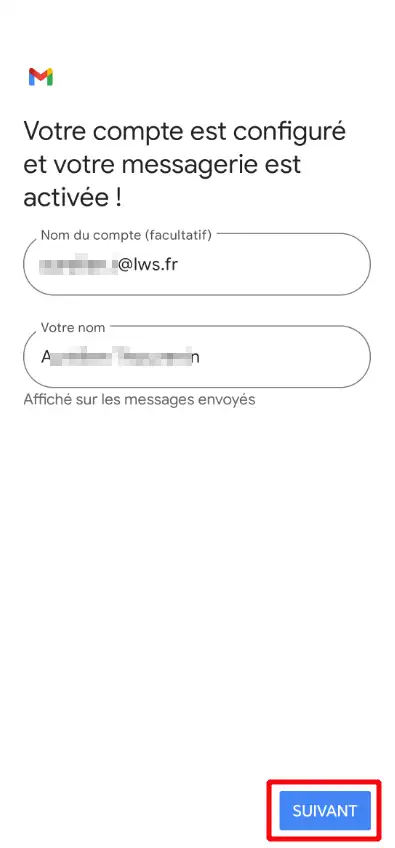
If everything is correct :
1. Give your account a name (optional). Example: Professional email
2. Enter the name that will appear when you send an e-mail. Example: John Smith
3. Press Next.
Your email account is now configured.
We recommend you carry out a simple test.
Send an e-mail to your own address.
Check that the message appears in :
Sent messages
Send an e-mail from another address (Gmail for example) to your address.
Check that the message arrives correctly in your inbox.
If both tests work, your configuration is correct.
If Android indicates that the password is incorrect :
Check that the server is entered correctly.
It must be in the form :
mail.yourdomain.ext
and not :
imap.yourdomain.ext
Make sure you are using the correct ports:
| Service | Port |
|---|---|
| IMAP | 993 |
| POP | 995 |
| SMTP | 465 |
Security must be SSL/TLS.
The menus may vary depending on :
If you don't find exactly the same options :
Your LWS email address is now configured on your Android phone or tablet.
You can now :
Rate this article :
4.2/5 | 10 opinion
This article was useful to you ?
Yes
No
0mn reading
0mn reading
How do I configure an LWS email address on an iPhone or iPad?
1mn reading
How do I configure an email address in Mail on macOS?
0mn reading
How do I add my email address to Gmail online webmail?
Bonjour,
Je vous remercie pour votre message.
Il faut savoir que les ports à renseigner lors de la configuration de votre adresse de messagerie dépendent essentiellement du protocole utilisé, si vous utilisez par exemple pour le protocole IMAP, il faudra utiliser le port "993" en entrant et "465" en sortant, pour ce qui est du protocole POP, il faudra utiliser le port "995" en entrant et "465" également en sortant.
La demande qui vous a été faite ne pourra faire fonctionner votre service correctement, malheureusement, nous ne serons pas en mesure de déterminer de quoi cela provient.
N'hésitez pas à contacter notre équipe du support technique si vous avez des difficultés supplémentaires et que vous avez un besoin d'assistance.
Je vous remercie pour votre attention et reste à votre disposition pour toute autre question ou complément d'information. Nous sommes là pour vous aider et vous accompagner dans la configuration de vos adresses de messagerie.
Cordialement, L'équipe LWS
Bonjour,
Si vous souhaitez configurer une adresse email LWS sur Yahoo Mail, Yahoo propose une documentation qui explique la marche à suivre et que vous pouvez retrouver sur ce lien : https://fr.aide.yahoo.com/kb/SLN28341.html
Cordialement, L'équipe LWS
Bonjour,
Je vous remercie pour votre message.
Je n’ai pas bien compris votre demande. Afin que nous puissions l’analyser en détail et vous apporter une réponse adaptée, je vous invite à contacter directement notre équipe d’assistance technique.
Je vous remercie pour votre attention et reste à votre disposition pour toute autre question ou complément d'information.
Cordialement, L'équipe LWS
 About LWS :
LWS is a 100% French web hosting company that focuses on quality and innovation and offers a responsive and competent technical service at affordable prices.
About LWS :
LWS is a 100% French web hosting company that focuses on quality and innovation and offers a responsive and competent technical service at affordable prices.