Contact us
 Customer Area
 Visit LWS
Rate this article :
3.3/5 | 7 opinion
This article was useful to you ?
 Yes
Yes
 No
No
 Article read
61176 once
Article read
61176 once Merci ! N'hésitez pas à
poser des questions sur nos documentations si vous souhaitez plus d'informations et nous aider à les
améliorer.
Merci ! N'hésitez pas à
poser des questions sur nos documentations si vous souhaitez plus d'informations et nous aider à les
améliorer.Vous avez noté 0 étoile(s)



Sommaire
Procédure
This documentation explains how to configure an email address created at LWS in the Outlook software installed on your computer.
Once the configuration is complete, you will be able to send and receive emails directly from Outlook, without using Webmail.
Please note
This documentation concerns the classic versions of Outlook software:
These versions use a very similar configuration procedure.
This documentation does not cover the "New Outlook" software (new Outlook for Windows), which has a different interface and configuration method.
This documentation is intended for users with an email address created at LWS, particularly in the following cases:
Before starting the configuration, please make sure you have the following items:
contact@votredomaine.frIn most cases at LWS, the settings are :
| Parameter | Value |
|---|---|
| Identifier | your full e-mail address |
| Password | address password |
| Incoming server (IMAP) | mail.yourdomain.ext |
| Outgoing server (SMTP) | mail.yourdomain.ext |
| IMAP port | 993 |
| POP port | 995 |
| SMTP port | 465 |
| Security | SSL/TLS |
[bcolor_orange]
Replace yourdomain.ext with your real domain name.
Example:
if your e-mail is contact@monsite.fr
The server will be mail.monsite.fr
[bcolor]
When configuring your account, Android may ask you to choose between IMAP and POP. See our tips for making this choice.
Open Outlook on your computer.
If no account has yet been set up, the configuration wizard will appear automatically.
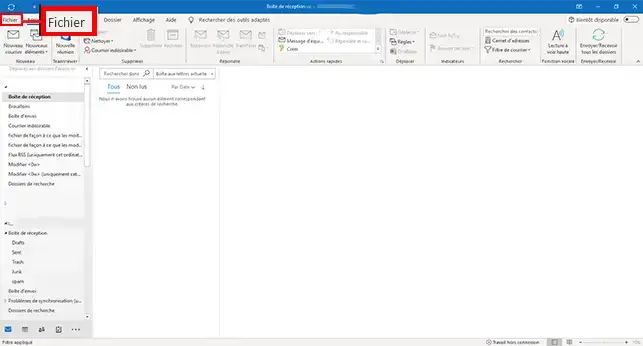
If Outlook is already configured with another account :
Click on File
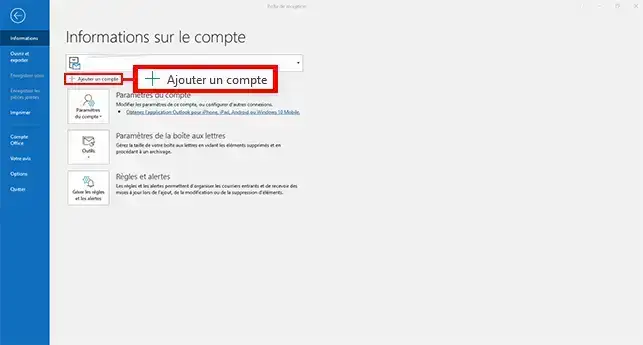
Click on Add an account
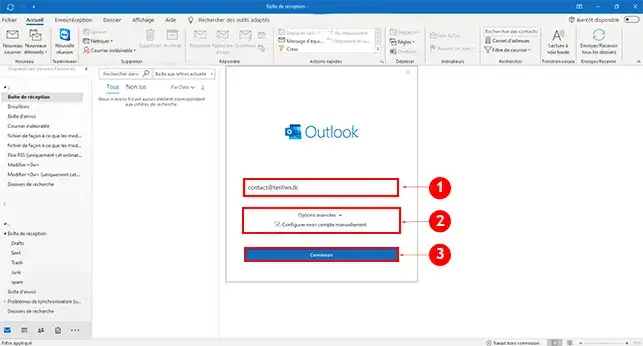
A configuration window will appear.
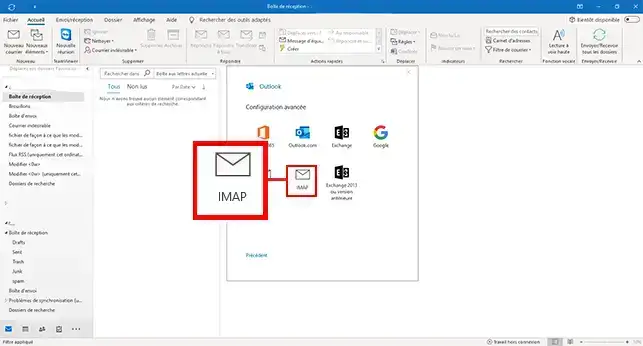
Outlook will ask you what type of account to use.
Select: IMAP (this method is recommended for most users)
You now need to enter your mail server details.
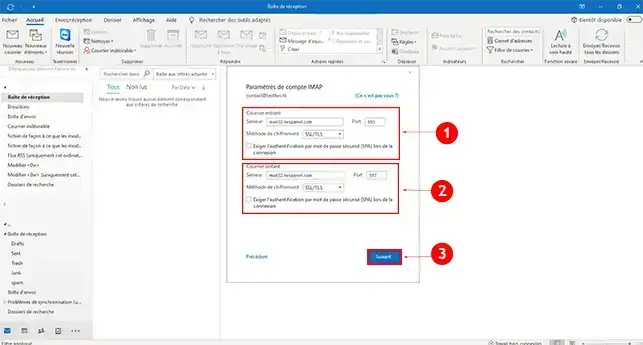
Incoming server (IMAP)
mail.votredomaine.fr993SSL / TLSOutgoing server (SMTP)
mail.votredomaine.fr465SSL / TLSOutlook will now ask you for the password for your email address.
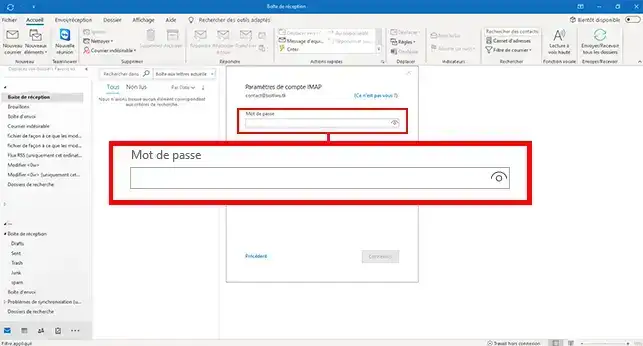
Enter the password and click Connect.
If the settings are correct, Outlook will confirm that the account has been added.
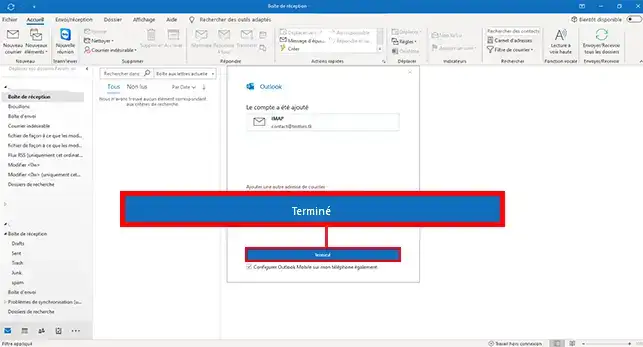
Click on Finish.
Your email address now appears in the list of your Outlook accounts.
Once your account has been configured, it's a good idea to carry out a test.
If these checks are correct, your email address is correctly configured.
Outlook can sometimes propose incorrect settings.
In this case :
Depending on the version of Outlook used (2019, 2021, 2024 or Microsoft 365), some windows may be slightly different.
In this case :
Check that you are using :
If in doubt, reset the password for your email address.
Check :
If you are still having problems configuring your email address, you can try starting Outlook in Safe Mode.
This mode allows you to launch Outlook without extensions or add-ons, which may solve some configuration problems.
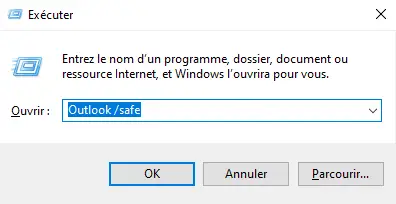
Outlook will then start up in Safe mode.
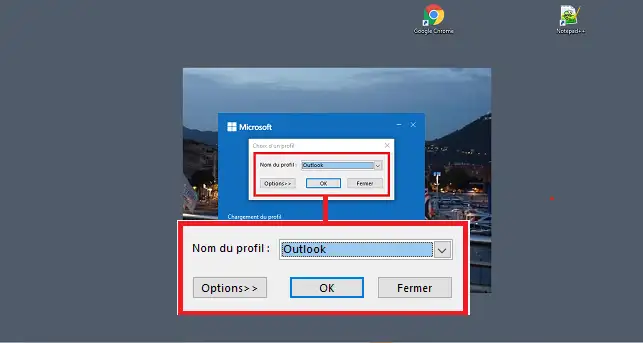
You can then retry configuring your email address.
To exit Safe Mode, you will need to close the software and reopen it.
You now know how to configure an LWS email address in Outlook (2019, 2021, 2024 and Microsoft 365).
This configuration allows you to send and receive your emails directly from Outlook while maintaining synchronisation with your mail server.
[
[/tips]
Rate this article :
3.3/5 | 7 opinion
This article was useful to you ?
Yes
No
0mn reading
0mn reading
How do I configure an LWS email address on an iPhone or iPad?
0mn reading
Setting up an LWS e-mail address on an Android tablet or phone
1mn reading
How do I configure an email address in Mail on macOS?
Bonjour, merci de votre retour.
Nous sommes désolés de constater que les captures d'écran de notre documentation ne correspondent pas à ce que vous voyez sur votre Outlook 365.
Nous nous efforçons de maintenir à jour nos documentations pour qu'ils soient toujours pertinents et utiles pour nos utilisateurs.
Cependant, il se peut que des mises à jour d'Outlook aient apporté des changements à l'interface utilisateur ou à la façon de configurer les paramètres.
N'hésitez pas à nous contacter via notre service support disponible depuis votre espace client pour obtenir de l'aide supplémentaire. Nous serions heureux de vous guider pas à pas à travers la configuration de votre compte Outlook 365. (https://aide.lws.fr/a/268)
 About LWS :
LWS is a 100% French web hosting company that focuses on quality and innovation and offers a responsive and competent technical service at affordable prices.
About LWS :
LWS is a 100% French web hosting company that focuses on quality and innovation and offers a responsive and competent technical service at affordable prices.